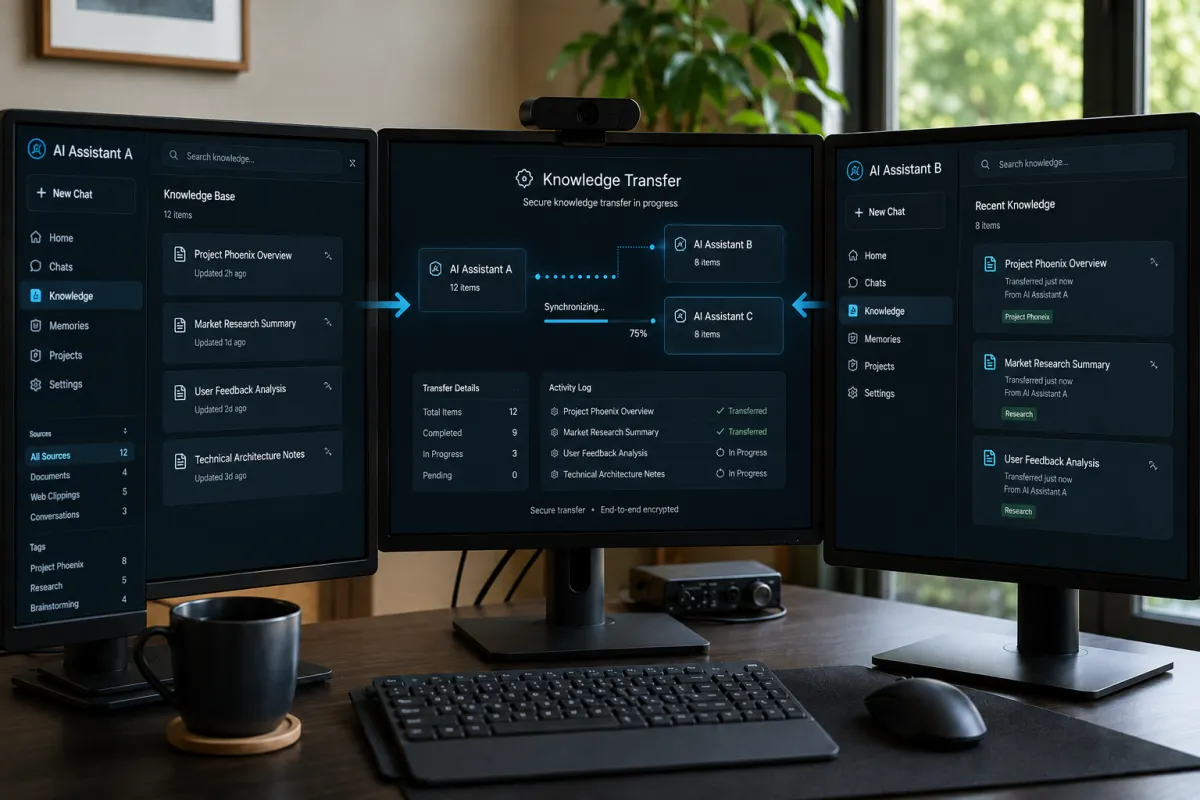
Transfer ChatGPT Memory To Claude or Gemini
Export ChatGPT Memory to Claude or Gemini: A Step-by-Step Guide for Business Owners
You spent months teaching ChatGPT how you work. Your writing style. Your business name. The fact that you prefer bullet points over paragraphs. You told it not to be formal. You corrected it when it got your industry wrong. Slowly, it started to feel like it knew you.
Now you want to try Claude or Gemini, and you are staring at a blank chat window.
That is exactly what the export ChatGPT memory tools built into Claude and Gemini are designed to fix.
Both platforms now let you bring your ChatGPT memory with you. The process takes less than 30 minutes for most people, and you do not need a technical background to do it. Here is exactly how it works.
Why Export ChatGPT Memory? (And What You Are Actually Moving)
Switching AI tools used to mean starting from scratch. Every preference, every correction, every detail you spent months teaching your AI was gone the moment you opened a new platform. That friction kept a lot of business owners stuck.
The tools covered in this guide remove that barrier. But before you export anything, it helps to know what you are actually moving.
ChatGPT stores two types of information about you. The first is your memory entries, which are short facts it has collected over time. Things like your name, your job, your preferred tone, and your past preferences. You can see these by going to Settings, then Personalization, then Memory.
The second is your conversation history, which is every chat you have ever had. This is a much larger file and contains the full context of your working relationship with the tool.
Most people only transfer the memory entries. That is the fastest path, and for most business owners, it is enough to get your new AI up to speed quickly. If you want to bring your full conversation history too, that option exists, but it takes longer and the files are significantly larger.
This guide covers both.
Step One: Export ChatGPT Memory (Two Methods)
There are two ways to get your memory out of ChatGPT.
Option A: Copy Your Memory Entries Manually
This takes about five minutes.
Go to chatgpt.com in a web browser. The mobile app does not let you select and copy all memories at once, so use a desktop browser.
Click your profile icon in the bottom left corner.
Click Settings, then Personalization, then Memory.
Click Manage.
Use Ctrl+A on Windows or Command+A on Mac to select everything on the page.
Copy it and paste it into a plain text document. This is your raw memory list.
Option B: Export Your Full Chat History
This takes longer and produces a much larger file.
Click your profile icon in the bottom left corner of ChatGPT.
Click Settings, then Data Controls.
Next to Export Data, click Export, then Confirm Export.
OpenAI will send you an email with a download link. That link expires after 24 hours, so download it promptly.
The file arrives as a ZIP file containing your full conversation history.
Note: The standard data export does not automatically include your memory entries. If you want both, complete Option A and Option B separately.
How to Move Your Memory to Claude
Claude has a built-in import feature designed specifically for this.
Open Claude at claude.ai.
Go to Settings, then Capabilities, then Memory.
Click Start Import.
Claude will give you a prompt to copy.
Open ChatGPT, start a new chat, and paste that prompt.
ChatGPT will summarize everything it knows about you.
Copy that entire response.
Return to Claude and paste it into the import tool.
Claude will integrate the information into its memory. This feature is still marked as experimental as of early 2026, so after the import, review what carried over and manually add anything missing.
If you exported your full conversation history, you can also paste portions of it into a new Claude chat with the instruction: "This is my memory from another AI assistant. Add this information to your memory." Claude will work through the context and begin building a picture of how you operate.
How to Move Your Memory to Gemini
Google rolled out its own import feature in late March 2026. It works through two methods.
Method One: The Prompt Transfer
This is the fastest option.
Open Gemini at gemini.google.com.
Click Settings and Help in the bottom left corner.
Click Import Memory to Gemini.
Gemini will give you a custom prompt.
Open ChatGPT and paste that prompt into a new chat.
ChatGPT will generate a structured summary of your preferences and history.
Copy that full response.
Return to Gemini, paste it into the memory import text box, and click Add Memory.
Gemini will use that information immediately in your next conversation.
Method Two: The ZIP File Upload
If you exported your full conversation history from ChatGPT, Gemini can process that file directly.
Go to Settings and Help in Gemini, then Import Memory to Gemini.
Under Import Chats, click Add.
Select your downloaded ZIP file from ChatGPT. Gemini accepts files up to 5 gigabytes.
Upload and wait. Processing can take up to a day for large files.
Once complete, your imported chats will appear in your Gemini sidebar under Chats, marked with a special imported chat icon. Note that images and files from your ChatGPT conversations are not transferred. Only the text carries over.
What Actually Transfers When You Export ChatGPT Memory (and What Does Not)
Here is what you can expect to carry over:
Your written preferences and instructions
Facts ChatGPT has saved about you
The text content of your conversation history
Here is what does not transfer:
Images and files you shared in ChatGPT
The AI's internal understanding of your work patterns (this gets rebuilt over time)
Custom GPTs or specialized tools you built inside ChatGPT
The transfer gives your new AI a head start. It does not give it years of working relationship. That rebuilds over the first few weeks as you use the tool.
A Practical Note for Business Owners: The Fastest Way to Get Your New AI Up to Speed
If your primary concern is getting your new AI to know your business quickly, the fastest path is not the full export. It is sitting down for 20 minutes and writing a plain description of how you work.
Tell it your business name, your industry, your typical clients, your preferred communication style, and three or four things that annoy you about generic AI responses. Paste that into Claude's memory or Gemini's saved info settings. You will cover more ground in that 20 minutes than a memory import alone will give you.
The import tools are genuinely useful. They save time and reduce the blank-slate frustration. But a well-written description of your business is still the most effective starting point for any AI tool.
Which Platform Should You Move To?
That question deserves its own post. The short answer is: it depends on where you spend most of your working day.
If you live in Google Docs, Gmail, and Google Drive, Gemini fits naturally into that workflow. If you want an AI that focuses on thoughtful, long-form reasoning and handles complex writing tasks well, Claude tends to be the stronger choice for that kind of work.
Both are solid. Neither requires you to start over. That is the point.
If you have questions about setting this up for your business, or if you want help writing that context document mentioned above, that is something we work through with clients regularly. Reach out. The goal is to get you working with an AI that actually knows your business, not one that treats every conversation like the first time you have met.

Michael Carmine
Founder & CEO | AIEducationalSolutions.org